Command Search keyboard shortcut
Assign a Photoshop keyboard shortcut that opens Command Search. Download the helper script, copy it into Photoshop's Scripts folder, restart Photoshop, then bind a shortcut to the script in Keyboard Shortcuts.
New to the feature? See the Command Search overview for what the palette can find and how to use it inside the plugin.
1. Download the script
2. Copy the script into Photoshop
Copy the downloaded .jsx file into your Photoshop app folder under Presets/Scripts (full path: <Photoshop_app>/Presets/Scripts).
Windows
Typical location (version folder name may differ):
C:\Program Files\Adobe\Adobe Photoshop 2026\Presets\Scripts\macOS
Typical location (version folder name may differ):
/Applications/Adobe Photoshop 2026/Presets/Scripts/3. Restart Photoshop
After copying, quit Photoshop completely and start it again. New scripts only appear under File → Scripts after a restart.
4. Confirm in Photoshop
Open File → Scripts and confirm CR2 Command Search is listed.
5. Assign the shortcut
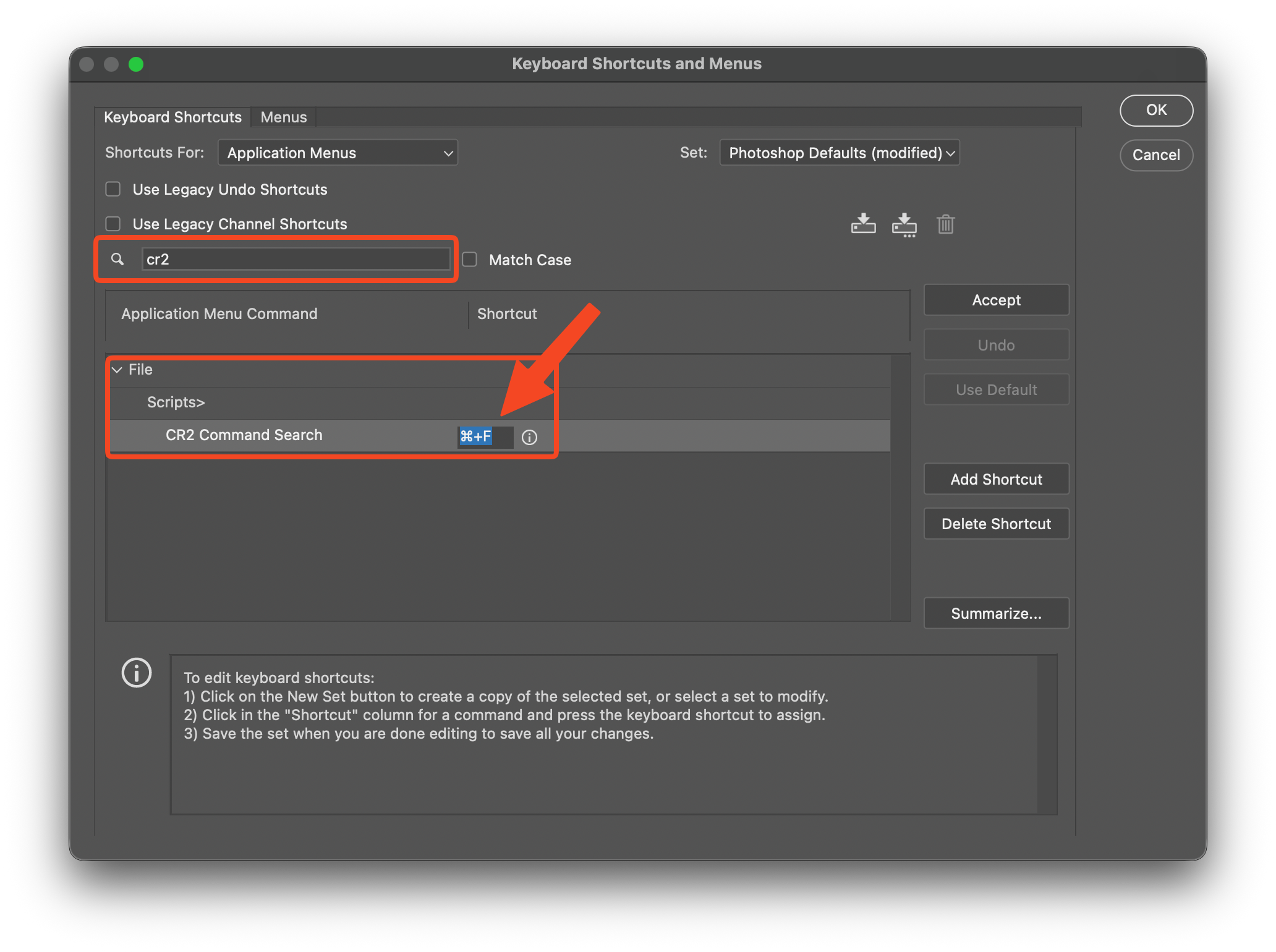
- Open Edit → Keyboard Shortcuts…, or press Option + Shift + Command + K (macOS) / Ctrl + Alt + Shift + K (Windows).
- In the search field, type cr2 to find File → Scripts → CR2 Command Search.
- Click the shortcut field for CR2 Command Search, then press the key combination you want (for example ⌘ F). Confirm with Accept or OK when you are done.
Troubleshooting
- Script does not appear under File → Scripts: Double-check the path (
Presets/Scripts), file extension (.jsx), and that you restarted Photoshop. - Cannot save into the folder (Windows): Use a run-as-administrator copy, or copy to Desktop first and move with elevated permissions.