Unlock All Photoshop Layers Fast
Locked layers are usually a small problem until they block the exact edit you need to make. If you want to unlock all Photoshop layers fast, the key is knowing when a manual fix is enough and when a one-click script saves time.
Why Layers Stay Locked
Photoshop locks layers for protection, and the Background layer is the most common example. It behaves differently from normal layers, which is why it often needs its own conversion step before the file feels fully editable again.
Other documents arrive with position locks, transparent-pixel locks, or full layer locks spread across the stack. Client PSDs, templates, and stock files often mix several lock types at once.
Unlock the Background and Clear Locks Manually
If only the Background is blocking you, double-click it in the Layers panel or use Layer > New > Layer from Background. Photoshop converts it into a regular layer that you can move, mask, or reorder normally.
If several layers are locked, select them together and turn off the active lock icons in the Layers panel. That works well when the document only has a few problem layers and you do not mind handling them in groups.
Manual unlocking is fine for occasional cleanup. It becomes frustrating when every imported file needs the same fix before real work can start.
Unlock Everything With a Workflow Script
For repeated file prep, Configurator Reloaded 2 gives you a faster option. The plugin includes workflow scripts, including Unlock all Layers, so you can remove locks from the full stack, including the background layer, without clicking through each row one by one.
Workflow scripts in Configurator Reloaded 2 can live directly in your panel, so utilities such as Unlock all Layers are ready the moment a locked PSD slows you down.
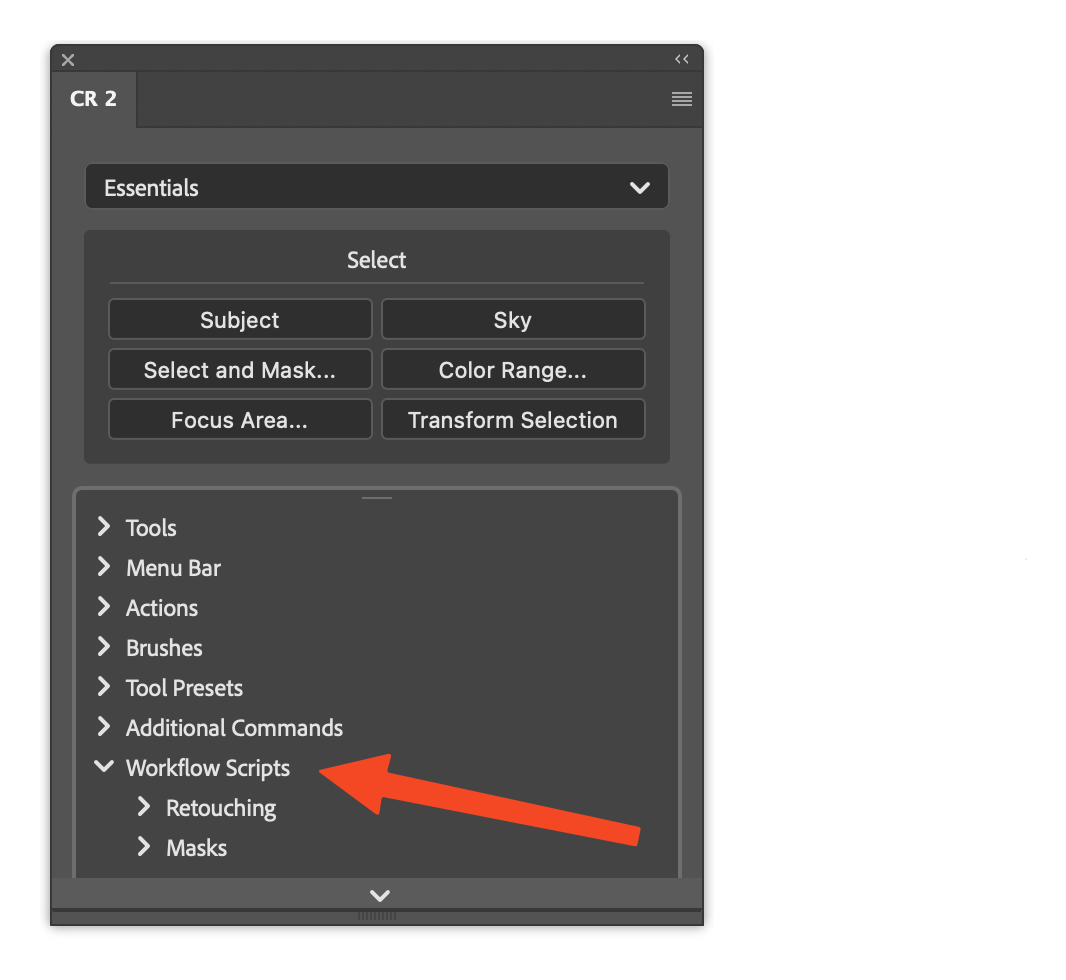
The Workflow Scripts area in the plugin keeps layer utilities close to your other repeated Photoshop tasks, which helps when file prep is part of every job.
After You Unlock the File
Once everything is editable, decide whether the document should stay open or be protected again. For client files, saving a copy before major structural edits is often the safest move. If only one section needed freedom, re-lock sensitive layers after the change so the rest of the file stays protected.
Unlocking layers should be a quick reset step, not a slow ritual before every job. If you want one-click access to utilities like Unlock all Layers, try Configurator Reloaded 2 and keep the fix inside the same panel as the rest of your workflow.