Photoshop Scripting: Choose ExtendScript or UXP
If you want to automate Photoshop, the first confusing question is usually not how to write code, it is which scripting path to start with. Photoshop scripting today means choosing between ExtendScript for compatibility and UXP for newer APIs and modern JavaScript.
When ExtendScript Still Makes Sense
ExtendScript is the older Photoshop scripting environment, and you will usually see it in .jsx files. It is based on older JavaScript syntax, so you work with var, classic functions, and a long-established Photoshop object model.
That older foundation is exactly why ExtendScript is still useful. Many existing community scripts, internal studio tools, and legacy workflows already depend on it. If you found a script online that still solves your problem, or you need to keep an older automation working, ExtendScript is often the fastest path.
var doc = app.documents.add(800, 600, 72, "My Document");
When UXP Is the Better Choice
UXP scripting is the newer route. It uses .psjs files, modern JavaScript features, and the APIs Adobe is actively growing for current Photoshop development.
If you are starting fresh, UXP is usually the better long-term choice. You get const, let, async patterns, and access to newer Photoshop capabilities that do not always show up first in older scripting systems.
const { app } = require("photoshop");
await app.createDocument({ width: 800, height: 600, resolution: 72 });
In practice, the decision is simple. Use ExtendScript when compatibility matters more than syntax, and use UXP when you are building something new and want the current direction of Photoshop scripting.
Where to Write and Run Photoshop Scripts
The biggest beginner friction is not the code itself, it is the edit-run loop. Photoshop can run scripts, but bouncing between an external editor, file browser, and Photoshop slows down simple experiments.
Configurator Reloaded 2 helps by adding a built-in Script Editor where you can write, edit, and run both ExtendScript and UXP in one place. That makes it easier to test a small idea, inspect the result, then tweak the script again without leaving your workspace.
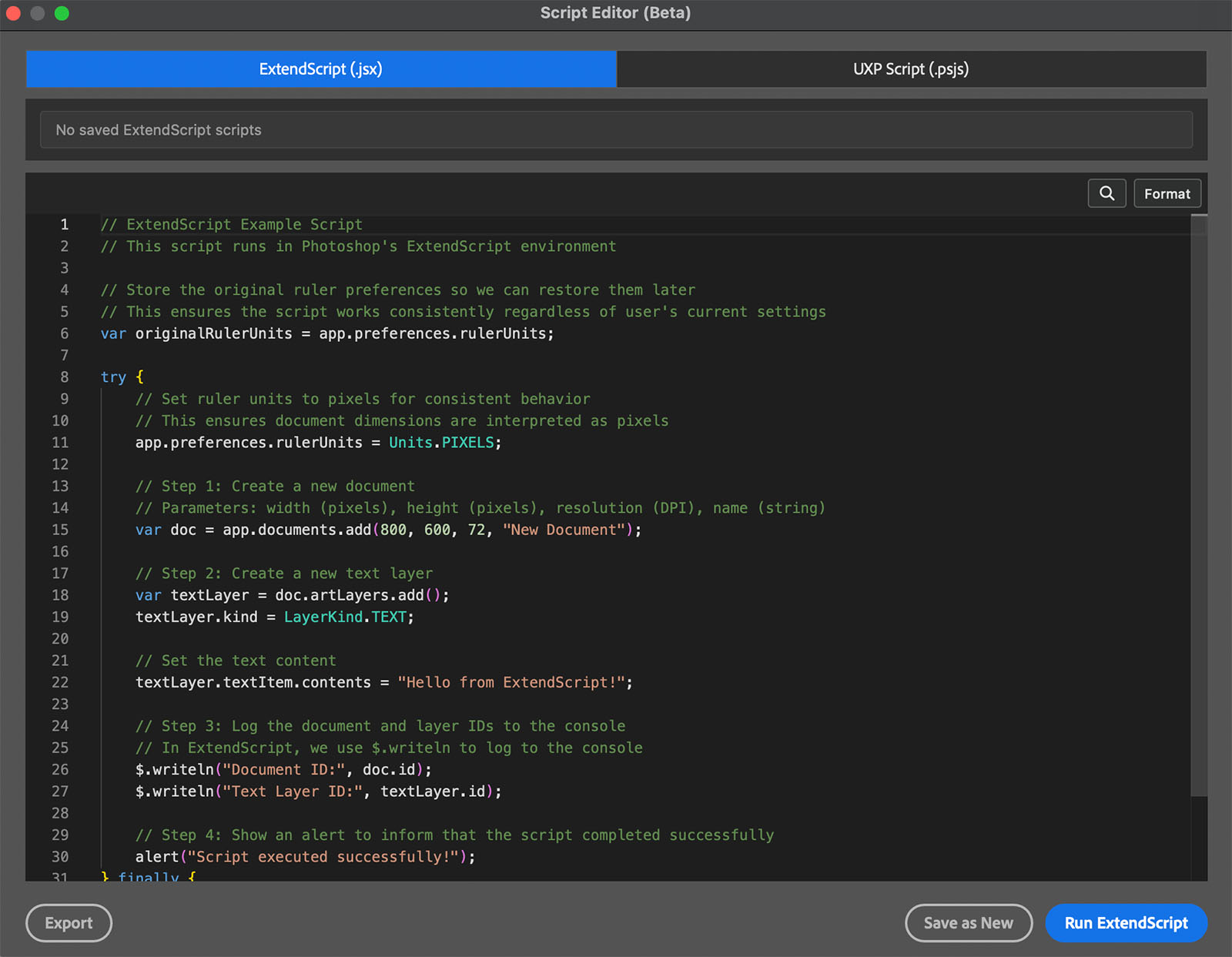
The Script Editor in Configurator Reloaded 2 gives you one place to write and run both ExtendScript and UXP scripts while you work inside Photoshop.
If you need full debugging for UXP, Adobe's UXP Developer Tool is still the right choice. Use it when you need breakpoints and step-through inspection. For faster daily testing and simpler experiments, an in-app editor is usually the more comfortable starting point.
Start With One Small Script, Not a Big Automation
The easiest way to learn Photoshop scripting is to automate one annoying task you already understand. Create a new document, rename a layer, or export one version of a file. Once that works, add one more step.
This keeps your learning grounded in real workflow problems instead of abstract API reading. If you want to experiment with both scripting paths without setting up a bigger toolchain first, try Configurator Reloaded 2 and test ExtendScript and UXP side by side in the same panel.