Automate Your Photoshop Workflow, Cut Repetition
If you keep rebuilding the same layers, exports, and setup steps by hand, it is time to automate your Photoshop workflow. A few small changes can remove repetitive clicks, reduce mistakes, and get you to the real editing work much faster.
Automate Your Photoshop Workflow One Step at a Time
The fastest way to automate your Photoshop workflow is not to automate everything at once. Start by spotting the tasks that happen in almost every job:
- resizing and export prep
- converting color space
- adding watermarks or output sharpening
- building the same retouching layer stack
- opening the same tools and actions for each project
If a task shows up in your workflow several times a day, or takes more than a few clicks each time, it is a strong candidate for automation.
Record Actions for Simple, Predictable Jobs
Photoshop actions are still the easiest place to start. They work best when the steps happen in the same order every time.
Use actions for jobs like:
- resizing images for web delivery
- converting files to sRGB
- applying the same export sharpen
- adding a logo or watermark
To create one:
- Open the Actions panel.
- Click
Create New Action. - Hit
Record. - Perform the steps once, carefully and in the right order.
- Click
Stop, then test the action on another file.
Keep actions short and specific. One action for export, one for cleanup, one for sharpening is usually easier to maintain than one giant action that tries to do everything.
Use Scripts for Multi-Step Setup
Some jobs are too fiddly for manual setup to stay worth repeating. Frequency separation, luminosity masks, dodge and burn layers, and high-pass sharpening all take several steps before the actual retouching even starts.
That is where scripts help. Instead of rebuilding the same layer structure each time, a script creates it for you in one click. If you use Configurator Reloaded 2, the plugin includes built-in workflow scripts for frequency separation, luminosity masks, dodge and burn, and high-pass sharpening, so you can jump straight into the image instead of repeating setup work.
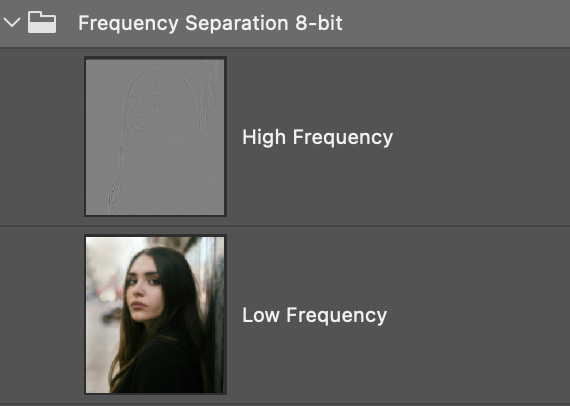
The Frequency Separation script in Configurator Reloaded 2 builds the layer stack automatically, so retouching can start right away.
Batch the Same Edit Across Many Files
When the same output needs to happen to a whole folder, use File > Automate > Batch. This is where Photoshop automation saves the most time.
A solid batch workflow looks like this:
- Record an action for the exact edit or export sequence.
- Put a few sample images in a test folder.
- Run the action through Batch on that folder first.
- Check naming, export location, color profile, and image size.
- Only then run it on the full job.
This works especially well for contact sheets, web exports, client proofs, watermarked previews, and repetitive delivery formats.
Keep Your Automation in One Panel
Automation only helps when it is easy to reach. If your actions live in one panel, your scripts in another, and your favorite menu commands in three different places, you still lose time hunting for them.
A custom panel solves that by putting your most-used tools in the order you actually work. With the plugin, you can drag and drop actions, tools, menu items, and scripts into up to three dockable panels, then build separate workspaces for retouching, masking, or export jobs.
Custom panels in the plugin keep actions, scripts, and tools one click away inside Photoshop.
Start Small, Then Expand What Works
Do not try to redesign your full Photoshop setup in one afternoon. A better rollout looks like this:
- Build one action you use every day.
- Add one script for a setup-heavy technique.
- Put both into a simple custom panel.
- Use that setup for a week.
- Add the next repetitive step only after the first ones feel natural.
That way, your Photoshop workflow automation grows around real habits, not guesses about what might be useful later.
If you want a faster way to organize those shortcuts, Configurator Reloaded lets you build custom Photoshop panels with actions, tools, and workflow scripts in one place. You can try it free and see where automation saves you the most time first.